Create projects
You can create job compute optimization projects by accessing the import wizard from the top of the Projects page or by selecting Create project from the Projects table after creating your initial project(s).
Create your first project
If you have not already imported or created your first job compute optimization project:
Navigate to Optimizations > Databricks from the Slingshot left sidebar.
Below Integrate with Databricks jobs, select the Get started now.

- On the Create projects modal, select the Databricks jobs that you want to add to your project.ℹ️If a single job has multiple job computes, Slingshot will create a project for each compute.
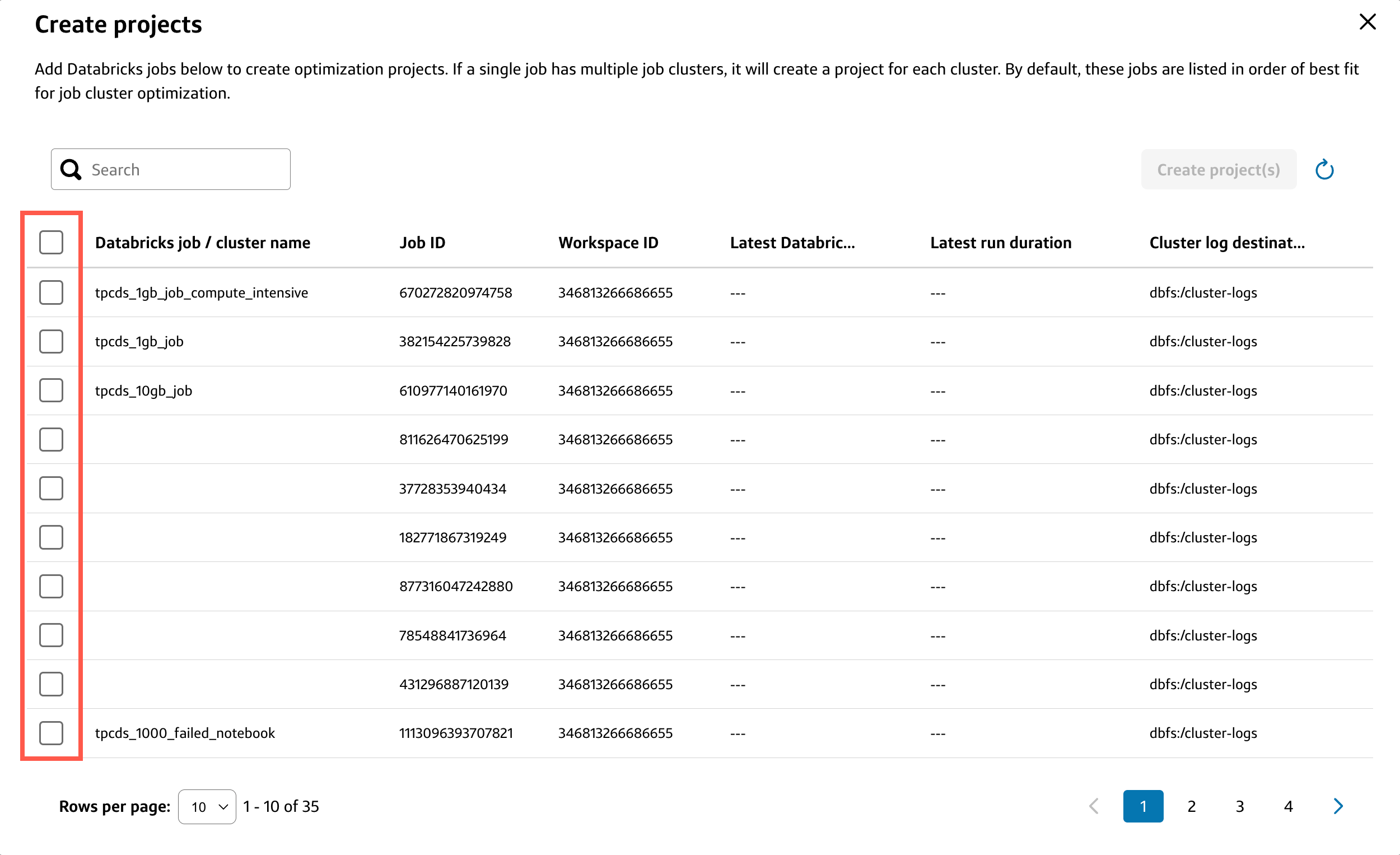
- Select Create project(s).
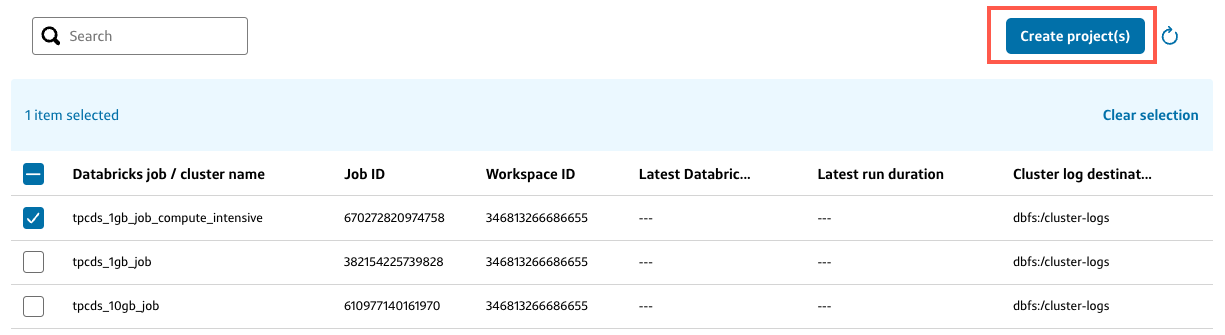
Follow the instructions in the import wizard to import your Databricks job computes.
When the import completes successfully, the Projects summary page loads.
- To learn more about the summary metrics, cost chart, and projects table displayed on the Projects summary page, see View projects.
Create new projects
If you already have existing job optimization projects, you can create new projects by selecting Create project from the Projects summary table.
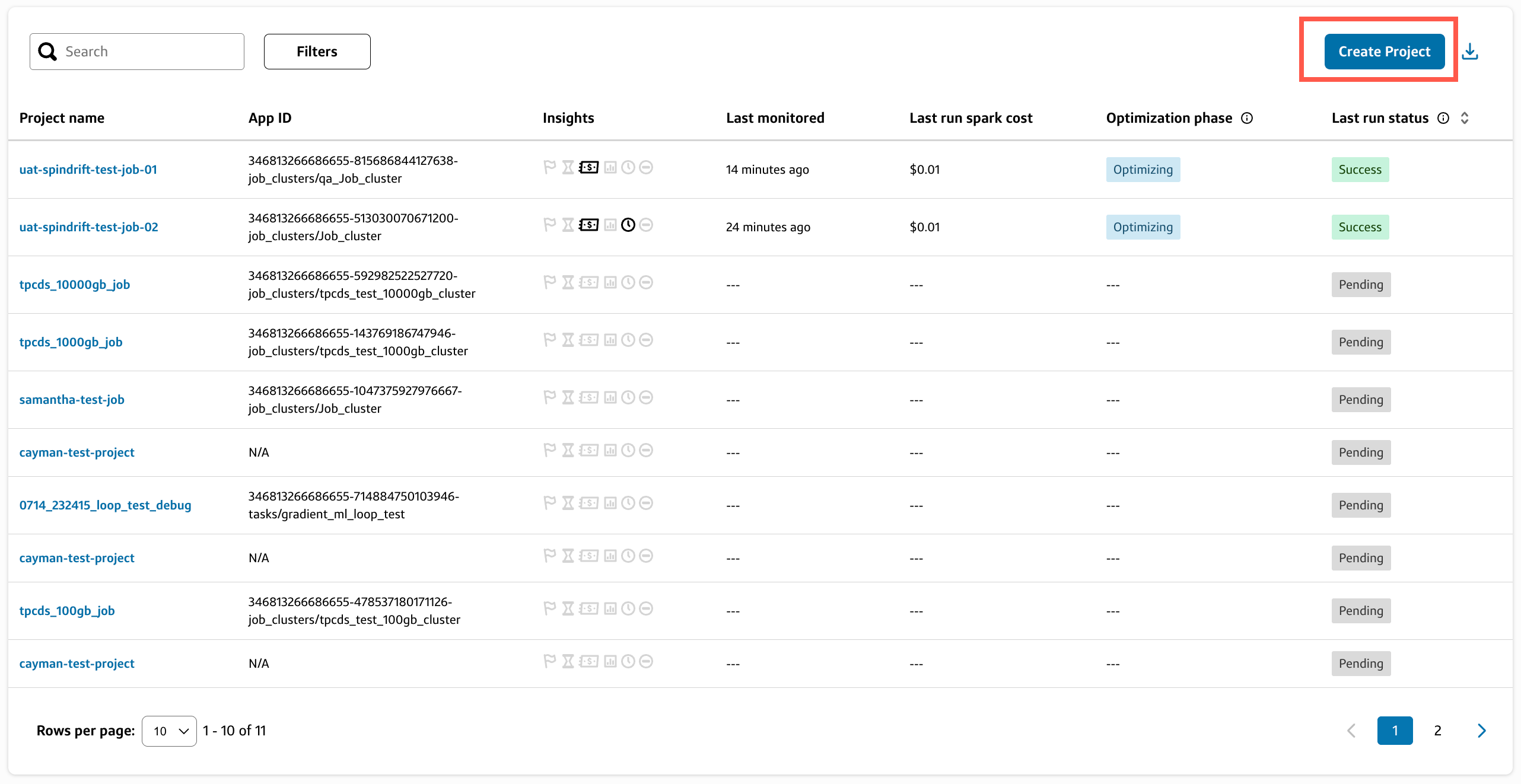
Alternatively, you can also:
Navigate to Optimizations > Databricks from the Slingshot left sidebar.
The Job compute optimization card displays the following information:
- Imported job computes: The number of job computes uploaded to job compute optimization over the total number of job computes onboarded to Slingshot.
- Projected savings: The total amount of savings expected from optimized job computes for the next 12 months, based on activity up to today.
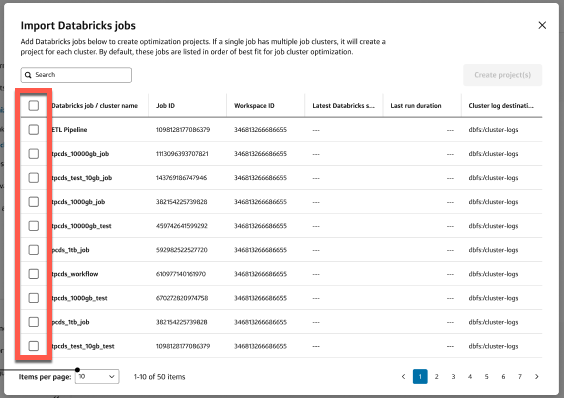
Select the > on the right side of the Job compute optimization card.

- On the Create projects modal, select the Databricks jobs that you want to add to your project.ℹ️If a single job has multiple job computes, Slingshot will create a project for each compute.
- Select Create project(s).
Follow the instructions in the import wizard to import your Databricks job computes.
When the import completes successfully, the Projects summary page loads.
- To learn more about the summary metrics, cost chart, and projects table displayed on the Projects summary page, see View projects.