Snowflake Tags
Overview
Slingshot automatically syncs tags from your connected Snowflake accounts. Snowflake tags appear alongside your Slingshot tags and filter all Slingshot dashboards.
Snowflake tags remain read-only in Slingshot. Slingshot prevents you from creating, editing, assigning, or deleting Snowflake tags within the application. To manage Snowflake tags, make changes directly in Snowflake; Slingshot reflects your updates on the next sync.
Slingshot syncs Snowflake tags on average once per day. Your changes in Snowflake appear in Slingshot immediately following the next sync cycle.
Throughout Slingshot, a Snowflake icon ( ) next to the tag name identifies Snowflake tags.
Where Snowflake tags appear
| Location | What you’ll see |
|---|---|
| Configurations > Manage tags | All synced Snowflake tags across your accounts, grouped by tag name. Indicates how many duplicate tag names were merged across Account Locator, Database, and Schemas, if any. |
| Configurations > Assign tags | View Snowflake tags associated with your Warehouses, Databases, and Users. |
| My Warehouses | View Snowflake tags associated with each warehouse and filter for warehouses tagged with certain Snowflake tags. |
| My Databases | View Snowflake tags associated with each database. |
| Dashboard filters | Snowflake tags are available as filter options in the Tags filter on Slingshot dashboards. |
View Snowflake tags
To view Snowflake tags synced to Slingshot:
Select Configurations at the bottom of the left navigation menu.
Select Manage tags on the Slingshot tags card.
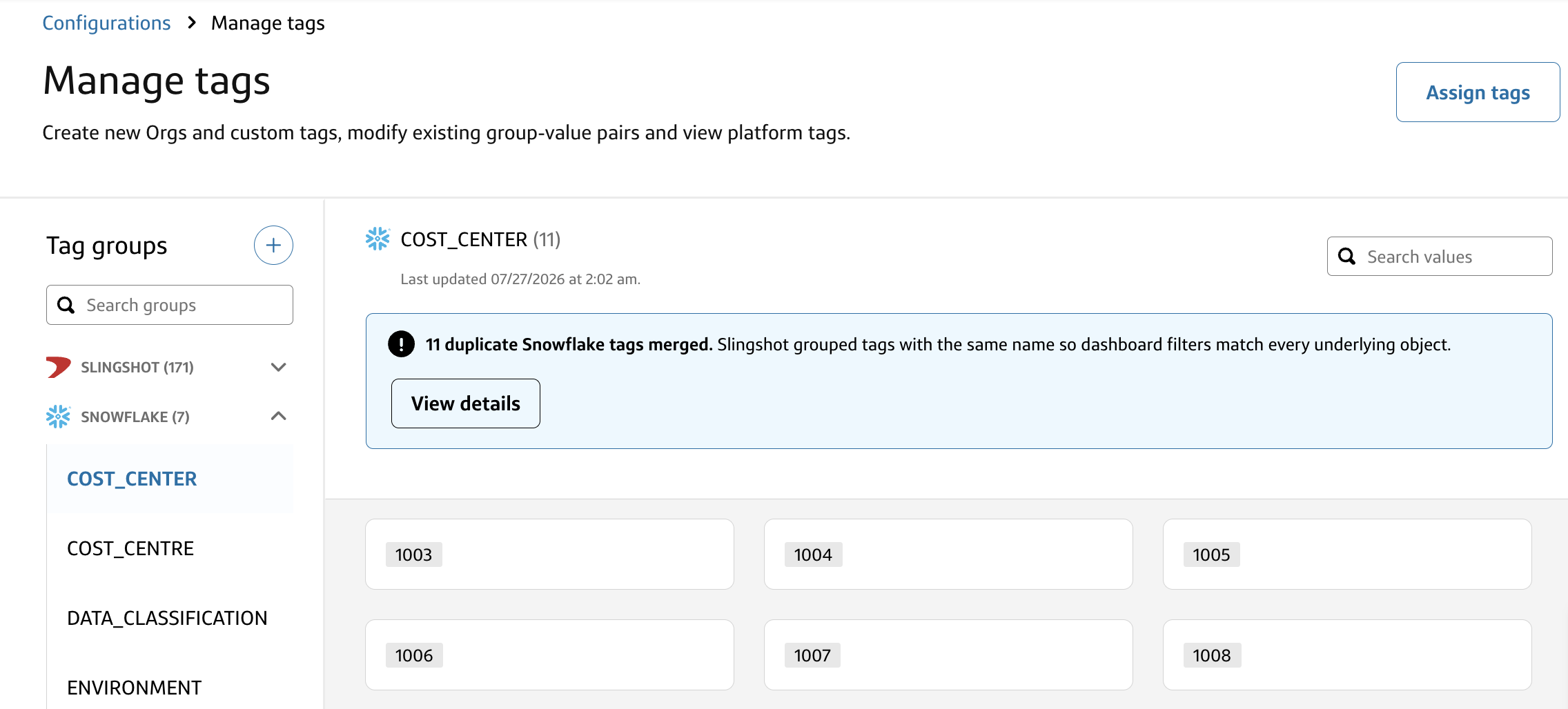
Select Snowflake in the Tag groups panel to view synced Snowflake tags.
Snowflake tag groups display the number of synced values alongside the date and time of the last sync.
To view objects tagged with Snowflake tags:
Select Configurations at the bottom of the left navigation menu.
Select Assign tags on the Slingshot tags card.
Open the filters above the table and select the Snowflake tag you want to inspect.
Select one or more object types under Types (Warehouse, Database, and/or User) to view specific object types.
The table updates to display only the objects that carry that tag in Snowflake.
Note: Slingshot prevents you from adding, editing, or deleting Snowflake tags within the application. You must make all changes directly in Snowflake.
Merging duplicate tags
When Slingshot syncs Snowflake tags, it automatically groups tags that share the same name (TAG_NAME) across different accounts, databases, or schemas into a single tag. Dashboard filters using that tag match every underlying object with that name, regardless of where you defined the tag in Snowflake.
Example
- If you define a cost_center tag in both SCHEMA_A and SCHEMA_B, Slingshot merges them into a single cost_center tag.
Filtering by this tag in a dashboard returns results for objects tagged in either schema. If you later rename a Snowflake tag so it no longer matches a duplicate, Slingshot displays it as a separate tag starting from the next sync.
Viewing merged tags in Manage tags
When Slingshot merges duplicate tags, a notice appears on the tag group in Configurations > Manage tags:
“N duplicate Snowflake tags merged. Slingshot grouped tags with the same name so dashboard filters match every underlying object.”
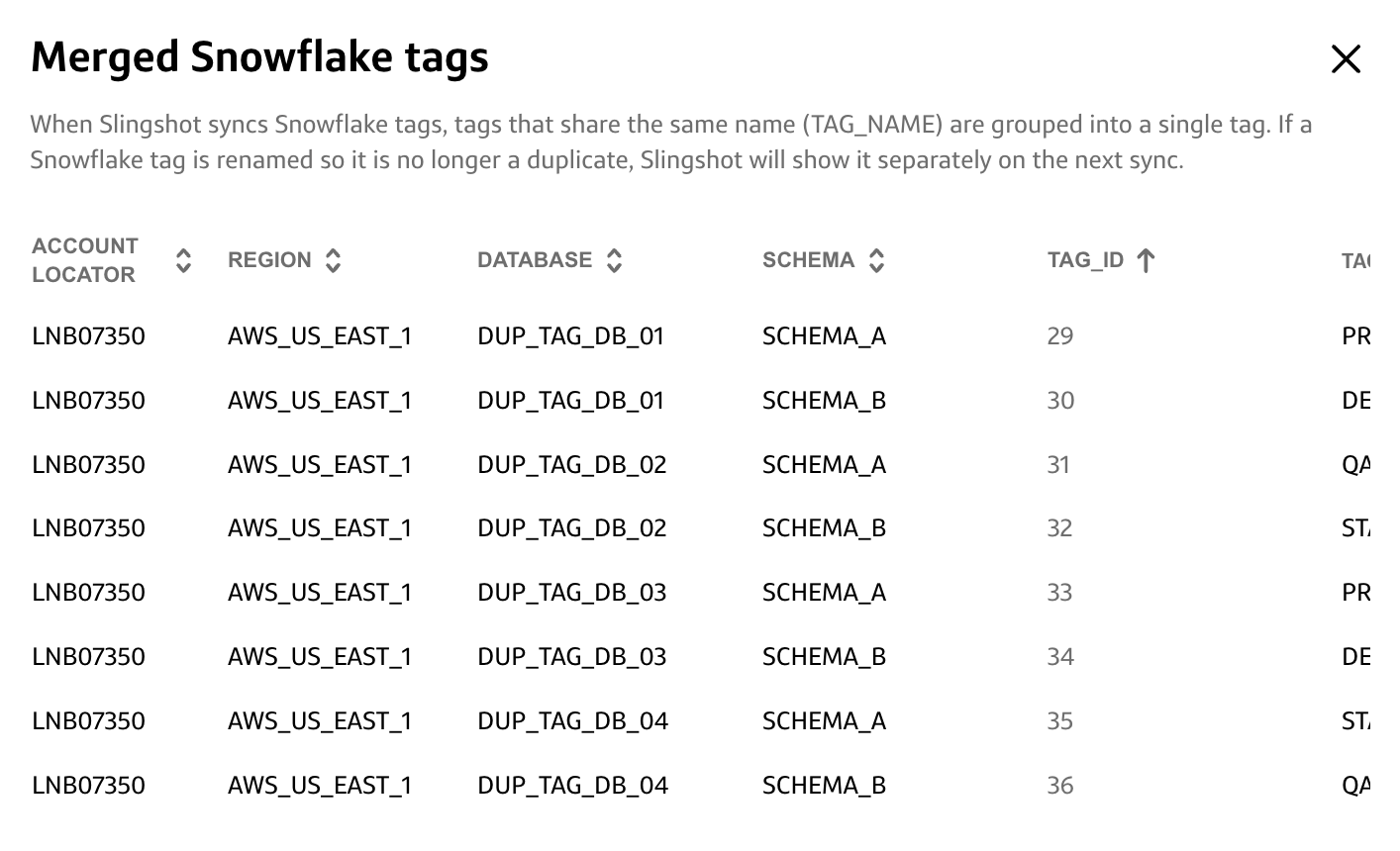
Select View details to open the Merged Snowflake tags modal, which lists each merged tag by Account Locator, Region, Database, Schema, Tag ID, and tag value. Use this view to trace exactly which Snowflake tag definitions Slingshot groups together.
Use Snowflake tags to filter dashboards
Snowflake tags are available in the Tags filter on all Slingshot dashboards. To filter by a Snowflake tag:
- Open any Slingshot dashboard.
- Select the Tags filter.
- Select one or more Snowflake tag values.
When you select a merged tag, the filter applies to all objects tagged with that name across every account, database, and schema where you defined the tag.